
Recognition is a key pillar of a positive workplace culture. The SignageFlow Birthday App makes it effortless to celebrate your team’s special days, whether you have a small office of ten or a global workforce of thousands. By automating birthday wishes, you ensure no one is forgotten and keep your company culture thriving on every screen.
What the Birthday App Does
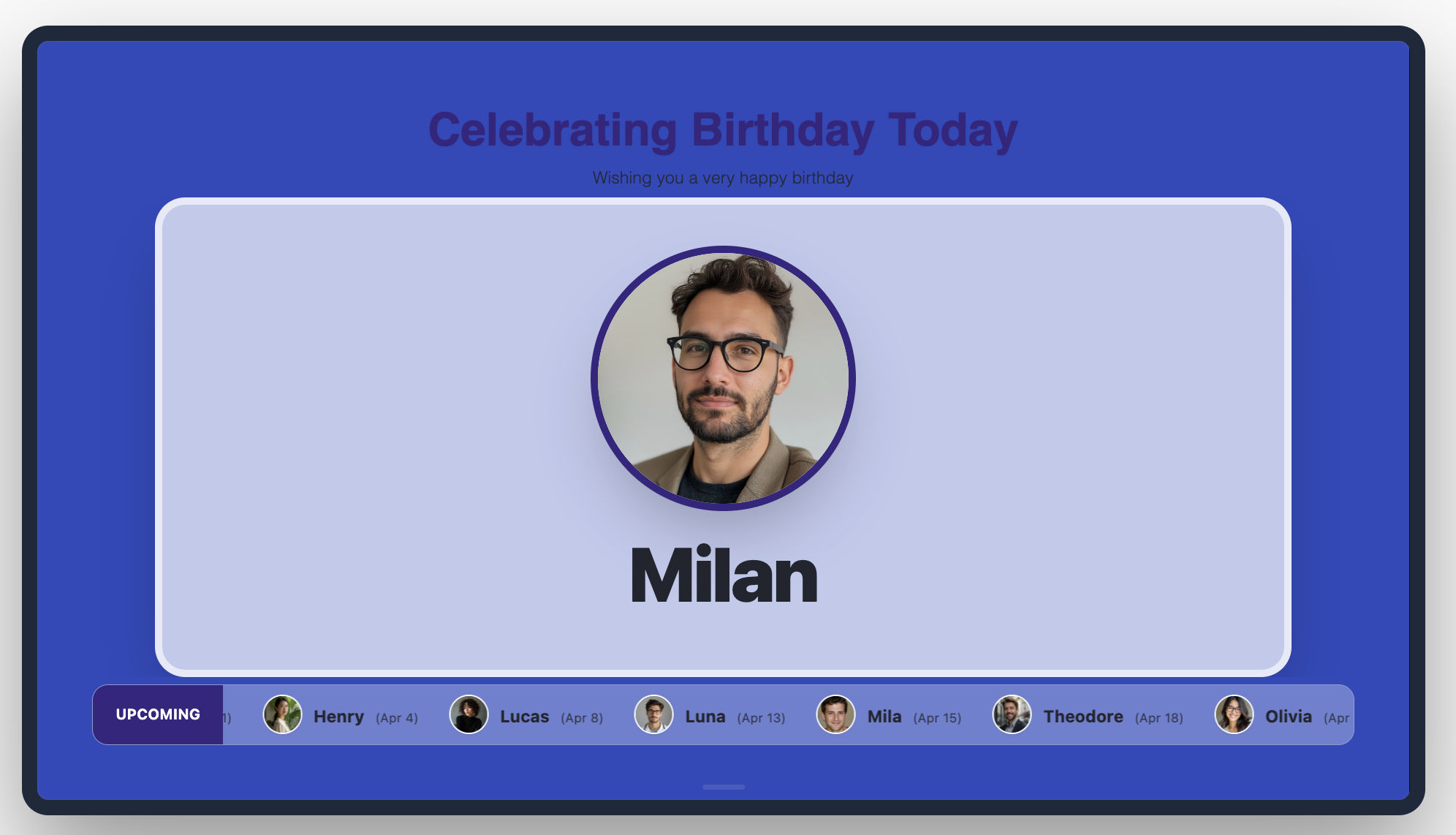
The Birthday App highlights upcoming or current employee birthdays. It can display a single "Spotlight" card for today’s celebrants, a gallery of recent birthdays, a monthly overview or display upcoming birthdays. The best part? You can choose to enter data manually or sync it directly from a Google Sheet for a "set-it-and-forget-it" experience.
How It Works: Choose Your Path
You can get your celebration live in five simple steps:
Initialize: Create a new Birthday app and name it (e.g., "HR Birthday Wall").
Pick Your Source: Choose between Manual Entry for small teams or Google Sheet for automated syncing.
Select a Template: Choose from four views: Single Card (Today's highlight), Gallery, Monthly View, or Upcoming Birthdays.
Style & Brand: Add a warm headline like "Celebrating Today," choose your colors, and upload a festive background image.
Publish: Add it to your playlist. If using a sheet, the app will automatically update as the days go by.
How It Works: Choose Your Path
You can get your celebration live in five simple steps:
Initialize: Create a new Birthday app and name it (e.g., "HR Birthday Wall").
Pick Your Source: Choose between Manual Entry for small teams or Google Sheet for automated syncing.
Select a Template: Choose from four views: Single Card (Today's highlight), Gallery, Monthly View, or Upcoming Birthdays.
Style & Brand: Add a warm headline like "Celebrating Today," choose your colors, and upload a festive background image.
Publish: Add it to your playlist. If using a sheet, the app will automatically update as the days go by.
Configuration Fields Breakdown
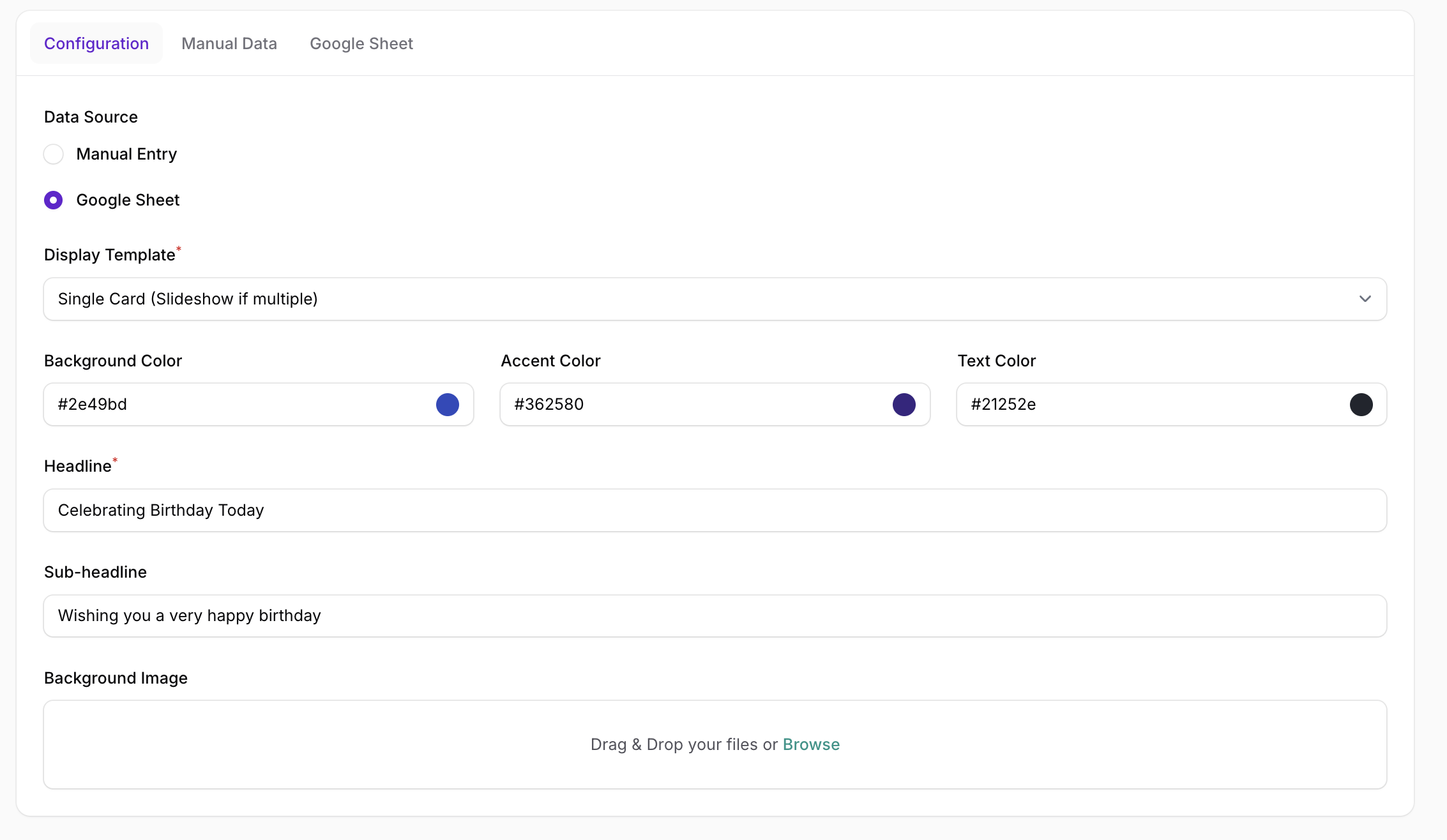
Data & Source Settings
Name: The internal title for your app instance.
Data Source: Toggle between Manual Entry and Google Sheet.
Display Template: Choose your layout (Single View, Gallery, Monthly, or Upcoming).
Google Sheet CSV URL: The link used to pull data automatically from your spreadsheet.
Visual Identity
Headline: The main greeting (e.g., "Celebrating Birthday Today").
Sub-headline: A personalized message (e.g., "Wishing you a very happy birthday").
Colors: Customize Background, Accent, and Text colors to match your brand or the festive occasion.
Background Image: Upload a high-quality graphic (e.g., balloons or confetti) to set the mood.
Employee Data (Manual or Sheet)
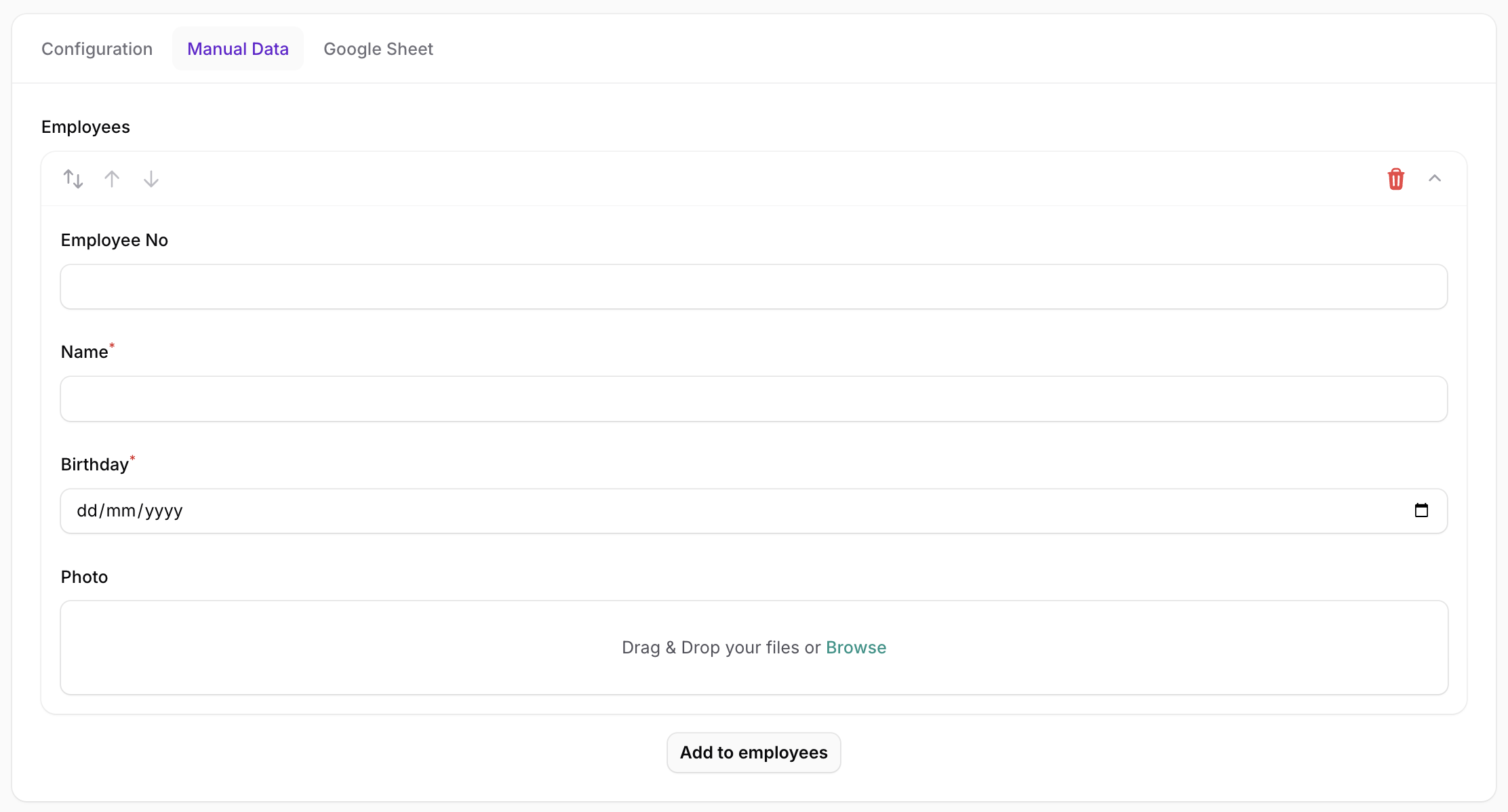
Employee No: The unique ID for each staff member.
Name: The employee's full name.
Birthday: The date of the celebration.
Photo: Uploaded manually or pulled via URL from your Google Drive sync.
The Pro Way: Syncing with Google Sheets
For larger organizations, the Google Sheet sync is a game changer. Here is how to set it up:
The Sheet: Start with this reference sheet. Duplicate it and enter your team's details. Link: https://docs.google.com/spreadsheets/d/18Pc4oraON4yvlWx9-lLRFXP1dRztuys6HjwC5UPqWac/edit?gid=0#gid=0
The Photos: Create a Google Drive folder and upload headshots named exactly by their
EmployeeID.jpg.The Connection: Copy the folder ID (the long string of characters in your browser URL after
/folders/).
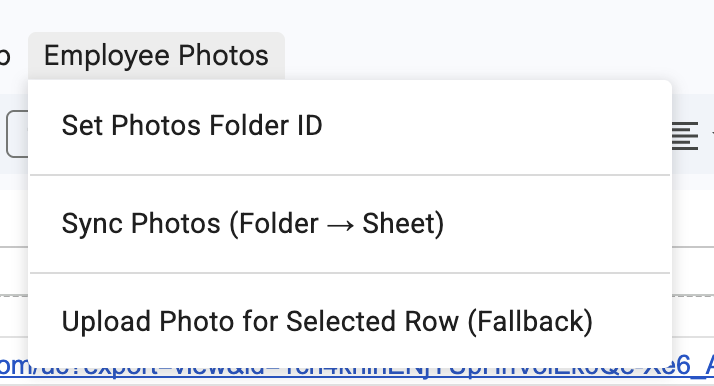
eg: "1bTax9e7V0mvZkzCRVP5W3zNa-55E1YTq" from https://drive.google.com/drive/u/0/folders/1bTax9e7V0mvZkzCRVP5W3zNa-55E1YTqThe Sync: Paste that ID into the Employee Photos -> Set Photos Folder ID which appears as a menu item in your sheet and click Sync Photos.
The Result: Your sheet now has live photo URLs. Copy this sheet url to SignageFlow, and your birthday board is now fully automated! Make sure the sheet is set to share
Optional: Upload photo from the sheet (fallback)
Click the employee row
Click Employee Photos → Upload Photo for Selected Row
Choose an image
The photo will be uploaded, renamed, and linked automatically.

Important Note: Do not make any changes to the columnNames. It is important to retain same column names for this sheet to work properly.