
You can create a shareable link for any playlist directly from the Playlists listing screen.
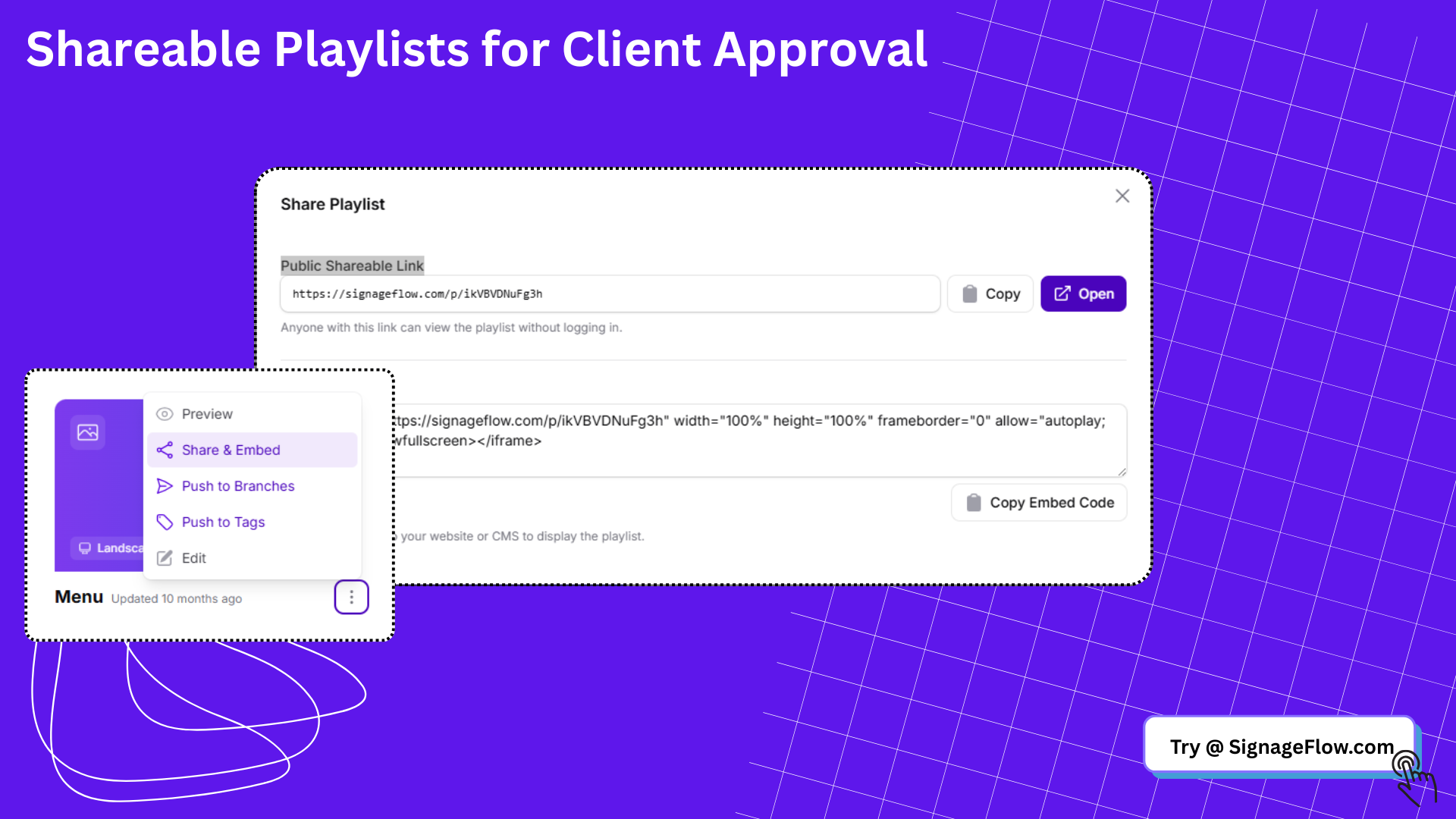
Important: this option is not inside the playlist edit screen.
It is available from the 3 dots menu on the playlist row in the playlist list.
Steps
Go to the Playlists page in your SignageFlow dashboard.
Find the playlist you want to share.
Click the 3 dots menu on that playlist row.
Select Share & Embed.
In the popup, copy the Public Shareable Link.
Send that link to anyone you want to preview the playlist.
What the shareable link does
Anyone with the link can view the playlist in their browser without logging in.
Need to embed it on a website?
In the same Share & Embed popup, you can also copy the Embed Code and paste it into your website or CMS.
Common confusion
If you are looking for the share option inside the playlist editor, you will not find it there.
The Share & Embed action is only available from the playlist listing screen through the 3 dots menu.
If you want, I can also turn this into:
a more polished help center article
a very short tooltip/help text for the UI
an FAQ version for your docs site