In an age of rapid-fire information, keeping your audience updated with the latest headlines is a powerful way to ensure your digital signage remains "must-watch" content. Whether it's global breaking news, industry trends, or internal company updates, the SignageFlow RSS News App automates the delivery of fresh content directly to your screens.

What the RSS News App Does
The RSS News app acts as a live bridge between your favorite news sources and your displays. By connecting to any standard RSS feed URL, the app pulls the latest headlines, descriptions, and metadata, presenting them in a clean, professional layout. It eliminates the need for manual content updates—if the news source updates their feed, your screens update automatically.
How It Works: The 4-Step Setup
Transforming a data feed into a visual news wall is simple:
Initialize: Create a new RSS app and name it based on the content (e.g., "Industry Daily").
Connect the Feed: Paste your target RSS URL into the configuration field.
Define the View: Choose how many headlines to show (Max Items) and select your Display Mode—either a comprehensive list or individual cards.
Style & Launch: Customize the colors and scales to match your environment, then add it to your playlist to start the live stream.
Configuration Fields Breakdown
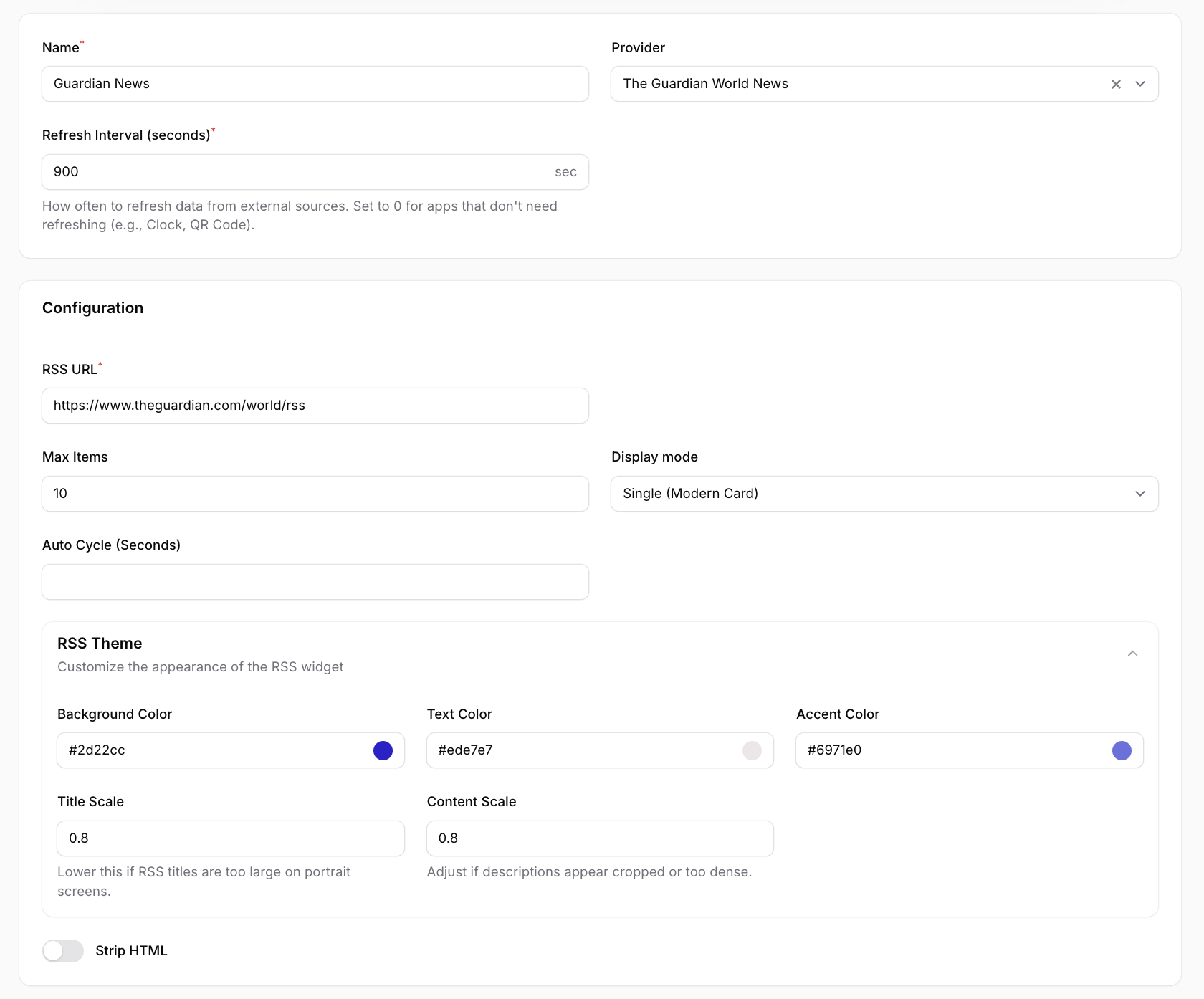
Core Feed Settings
Name: The internal title for your app instance.
Provider: The source or category name (e.g., The Guardian World News).
Refresh Interval (seconds): How often the app fetches new data. (900 seconds / 15 minutes is a common standard).
RSS URL: The direct link to the XML/RSS feed you wish to display.
Max Items: The maximum number of headlines to pull from the feed (e.g., 10).
Display & Animation
Display Mode: Choose between a List view (multiple headlines at once) or Single (Modern Card) for one item at a time.
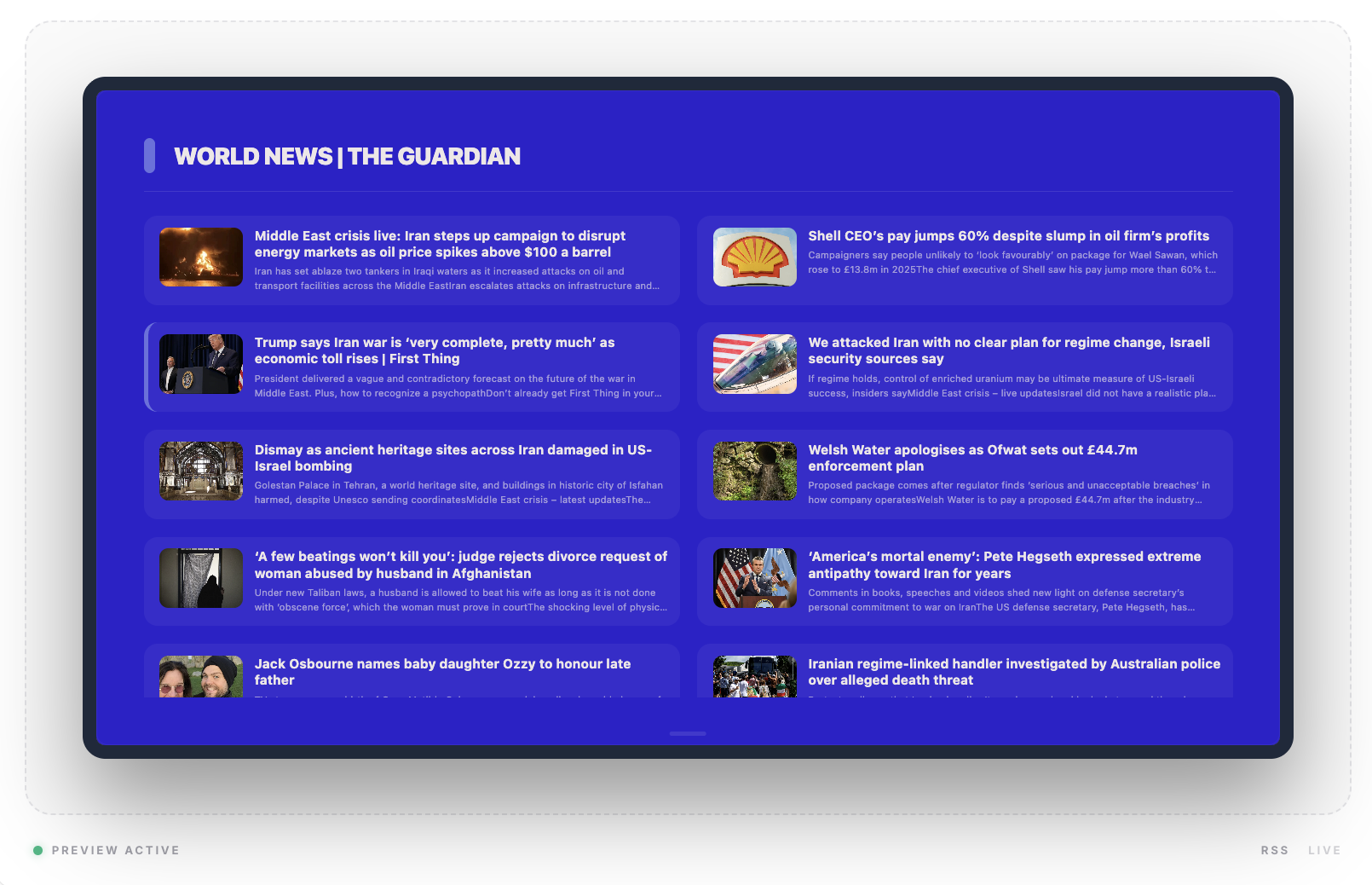
List View to display NEWS
Auto Cycle (Seconds): If using the Single Card mode, this sets how long each headline stays on screen before transitioning to the next.
Strip HTML: A toggle to remove any messy coding or tags from the feed description for a cleaner look.
Theming & Sizing
Background Color: The hex code for the widget backdrop (e.g., #2d22cc).
Text Color: The hex code for the primary headline text (e.g., #ede7e7).
Accent Color: The hex code used for dividers, icons, or source labels (e.g., #6971e0).
Title Scale: Adjusts the font size of the headlines. Lower this if titles are being cut off on portrait screens.
Content Scale: Adjusts the size of the summary/description text for better density.
While SignageFlow makes it easy to get started with built-in sources like Guardian News, the real power lies in its flexibility. By selecting the Generic RSS provider, you can turn almost any website into a live news ticker.
How to Connect a Custom Feed
If your favorite source isn't on the list, follow these quick steps:
Select Generic RSS: In the Provider dropdown, choose the "Generic" option.
Find the RSS URL: Most sites make this easy. Try adding
/feedor/rssto the end of their main domain (e.g.,techcrunch.com/feed).Paste & Preview: Drop the URL into the RSS URL field. SignageFlow will immediately pull the live data so you can see how it looks before you publish.
Strategic Use Cases
Office Break Areas: Create a "News Wall" that keeps employees informed on world events during their downtime, boosting engagement with the screens.
Showrooms & Retail: Display industry-specific news or tech updates to position your brand as a thought leader in your space.
Educational Campuses: Use the app to pull from a school’s "Announcements" or "Events" RSS feed to keep students and faculty in the loop regarding campus life.
Real-World Examples
Global News Feed: Configured with 10 items in List Mode for a high-density information hub.
Tech Headlines: Set to Single Card Mode with an Auto Cycle of 6 seconds to create a dynamic, rotating "ticker" effect.
Company Press Mentions: Utilizing Custom Brand Colors (Hex codes) to make external news look like a native part of your corporate identity.