Whether you are recording a high-quality marketing video, leading a community in prayer, or delivering a keynote at a corporate town hall, staying on message is essential. The SignageFlow Teleprompter App transforms any screen into a professional-grade prompter, giving presenters and audiences alike the tools they need to follow along with precision and poise.
What the Teleprompter App Does
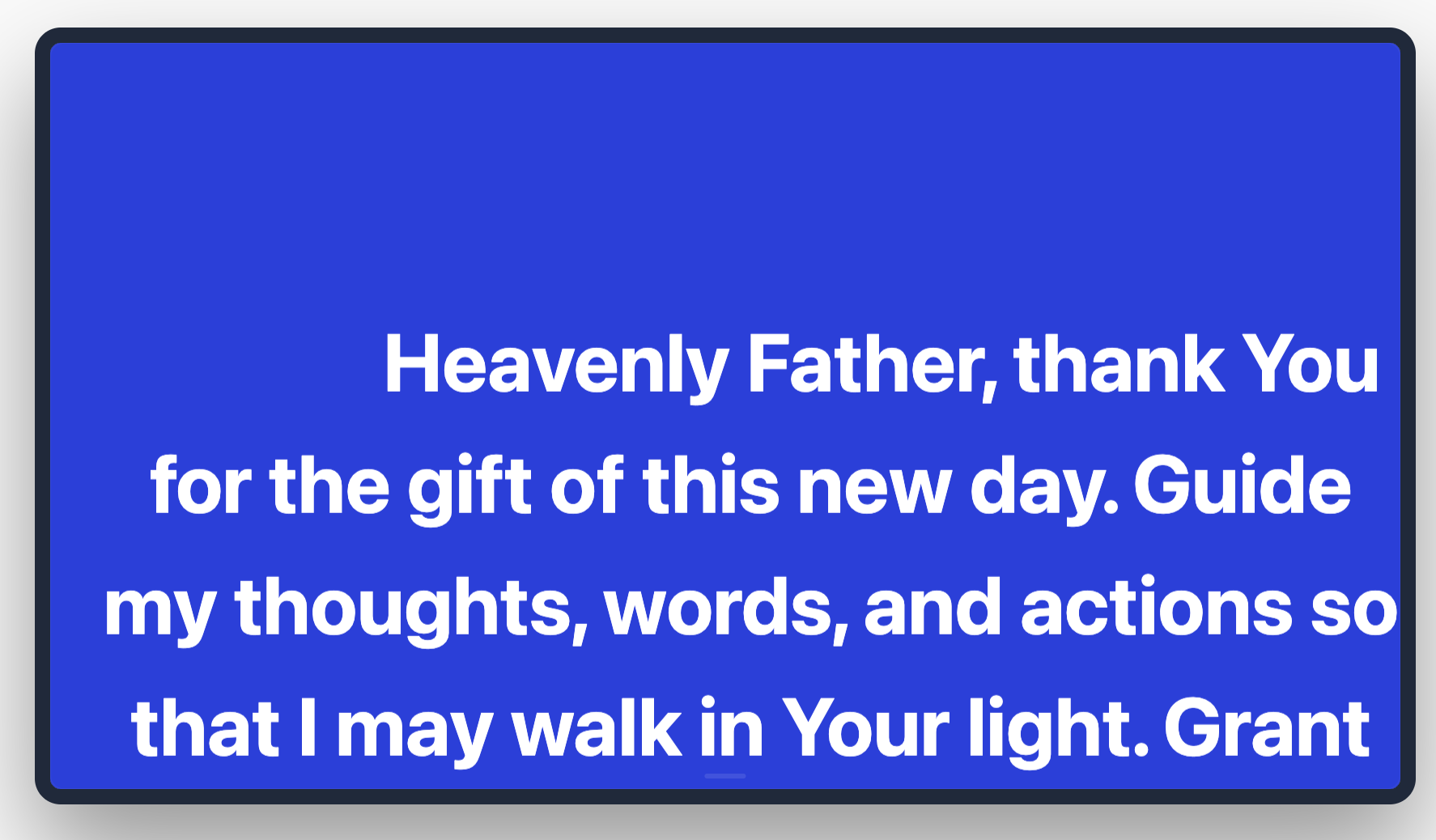
The Teleprompter app provides a smooth, scrolling text display designed for readability. It gives you total control over the reading experience—from speed and font size to advanced studio features like Mirror Mode. It is the ultimate companion for creators, executives, and educators who need to deliver consistent, clear messages.
How It Works: Your 5-Step Script Setup
Transforming your text into a scrolling script takes just a few clicks:
Initialize: Create a new Teleprompter app and give it a name (e.g., "Product Launch Script").
Paste Your Content: Drop your full script into the Script Content area.
Optimize for Reading: Adjust the Scroll Speed, Font Size, and Line Spacing so it matches your natural speaking pace.
Configure for the Studio: Select your scroll direction and toggle Mirror Mode if you are using a physical teleprompter glass rig.
Publish: Add it to your screen's playlist and start your presentation.
Configuration Fields Breakdown
Content & Reading Controls
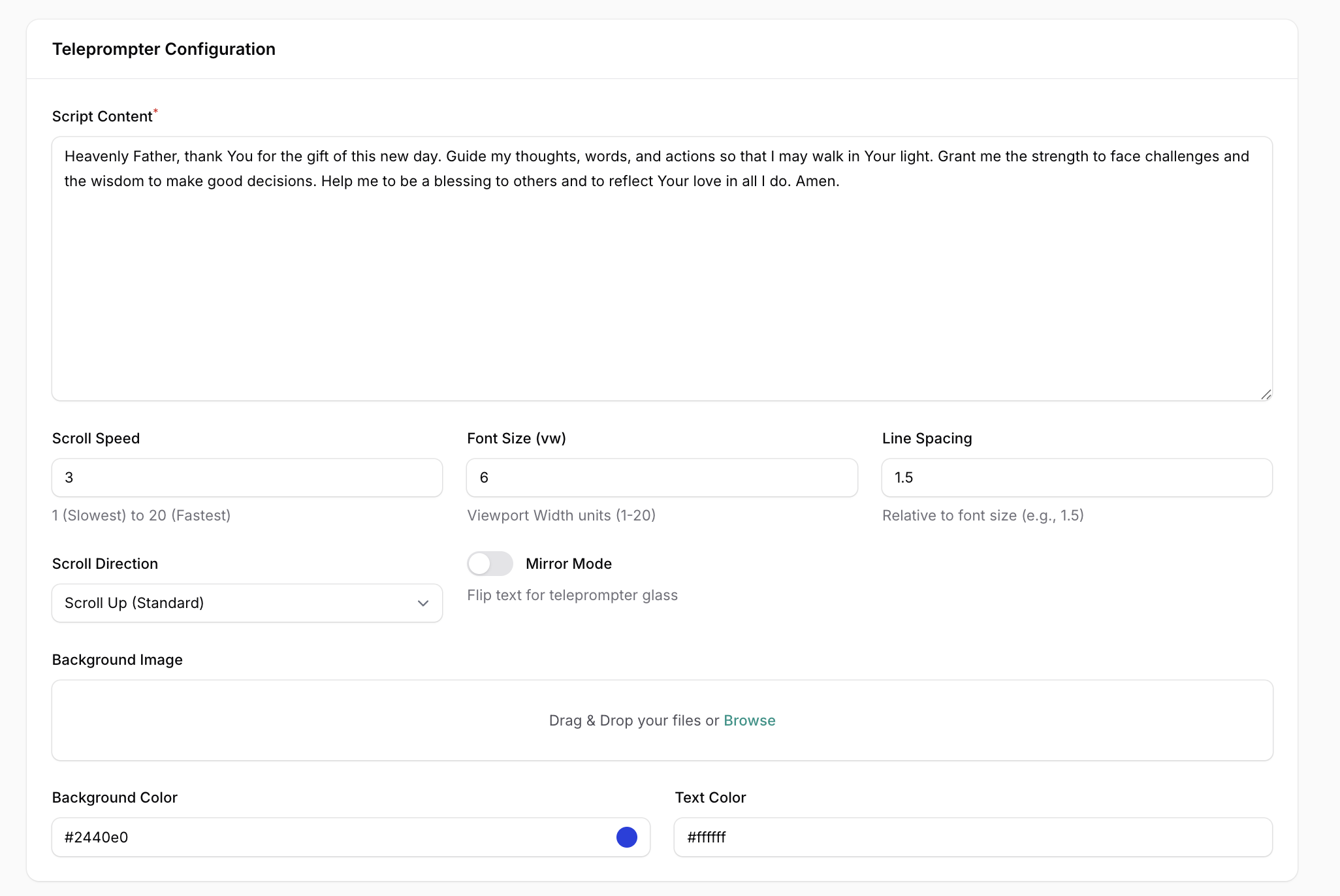
Name: The internal title for your script instance.
Script Content: The text box where you paste your full speech or notes.
Scroll Speed: Scale from 1 (Slowest) to 20 (Fastest).
Font Size (vw): Set the text size based on the viewport width (1-20) to ensure legibility from any distance.
Line Spacing: Adjust the vertical gap between lines (e.g., 1.5) to prevent the text from feeling cramped.
Advanced Studio Settings
Scroll Direction: Choose between Scroll Up (Standard) or Scroll Down.
Mirror Mode: A critical toggle for studio setups. It flips the text horizontally so it appears correctly when reflected off a teleprompter glass mirror.
Visuals & Themes
Background Image: Upload a custom backdrop if the script is being used as part of a visual display.
Background Color: Typically set to a dark color (e.g., #2440e0) to reduce eye strain.
Text Color: High-contrast colors (e.g., #ffffff) are recommended for maximum readability.
Strategic Use Cases
Studio Teleprompter Feeds: Power your home or professional studio by sending the script directly to a monitor behind your camera lens.
Corporate Town Hall Scripts: Help executives stay on message during live-streamed company updates.
Training & Education: Use it as a guide for instructors during long training sessions to ensure all key points are covered without looking at a handheld paper.
Real-World Examples
"CEO Update Script": Configured with a slow speed (3) and large font (8vw) for a steady, authoritative delivery in a large conference room.
"Webinar Host Notes": Utilizing Mirror Mode for a desktop prompter setup, allowing the host to look directly into the camera while reading.
"Event MC Script": A standard Upward Scroll layout with generous line spacing to help the MC keep track of the evening's agenda at a glance.